
Connect your LinkedIn account to Outboundry to automate connection requests, messages, InMails, profile views, follows, and other LinkedIn activities. Once connected, your LinkedIn account can be used as a sender in LinkedIn and multi-channel campaigns.
Before you begin
Before connecting your account, make sure you have:
An active LinkedIn account.
Access to the LinkedIn account you want to connect.
A stable internet connection.
Outboundry supports two ways to connect your LinkedIn account:
Method |
Recommended |
Best For |
|---|---|---|
Browser Cookies |
✅ Yes |
Most users. Faster, more secure, and less likely to trigger LinkedIn security checks. |
Credentials |
Alternative |
Use this if you cannot install the browser extension. |
Connect using Browser Cookies (Recommended)
Using your existing LinkedIn browser session is the easiest and safest way to connect your account.
Step 1: Open LinkedIn Accounts
From the left navigation menu, go to LinkedIn Accounts and click Connect Account.
Screenshot Placeholder: Connect Account screen
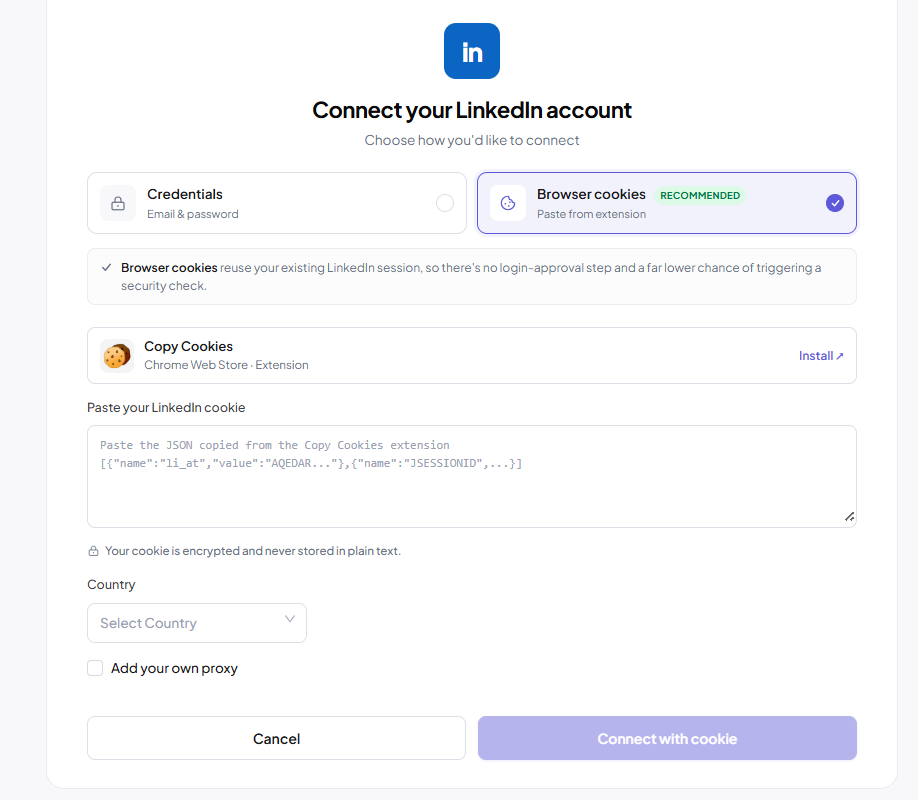
Step 2: Select Browser Cookies
Browser Cookies is selected by default.
If it isn't, choose Browser Cookies (Recommended) from the available connection methods.
Step 3: Install the Copy Cookies extension
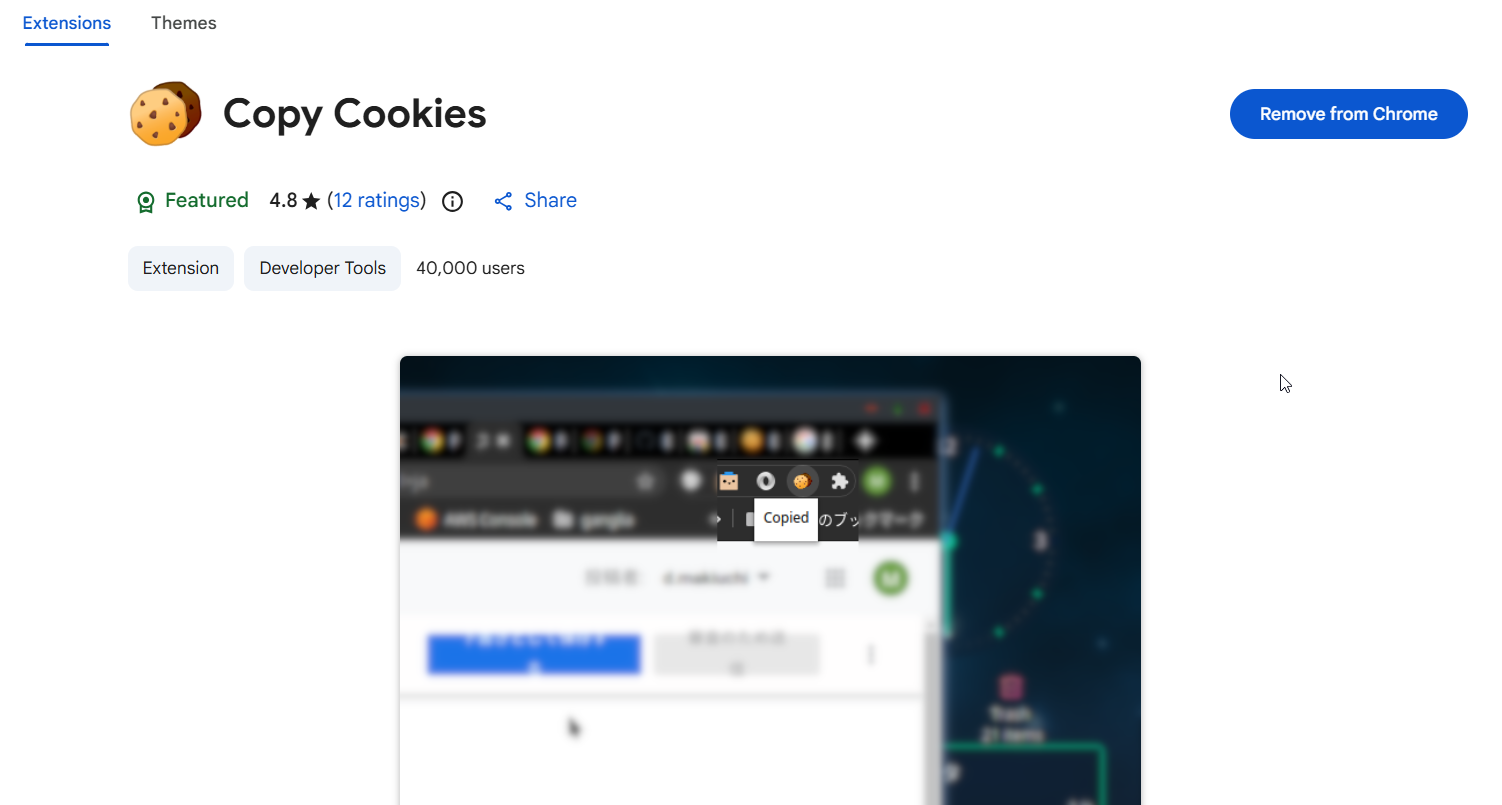
Install the Copy Cookies Chrome extension from the Chrome Web Store and pin it to your browser toolbar for quick access.
Step 4: Sign in to LinkedIn
Open linkedin.com in the same browser where you're using Outboundry and sign in to the LinkedIn account you want to connect.
Make sure you're signed into the correct LinkedIn account before copying the cookie.
Step 5: Copy your LinkedIn cookie
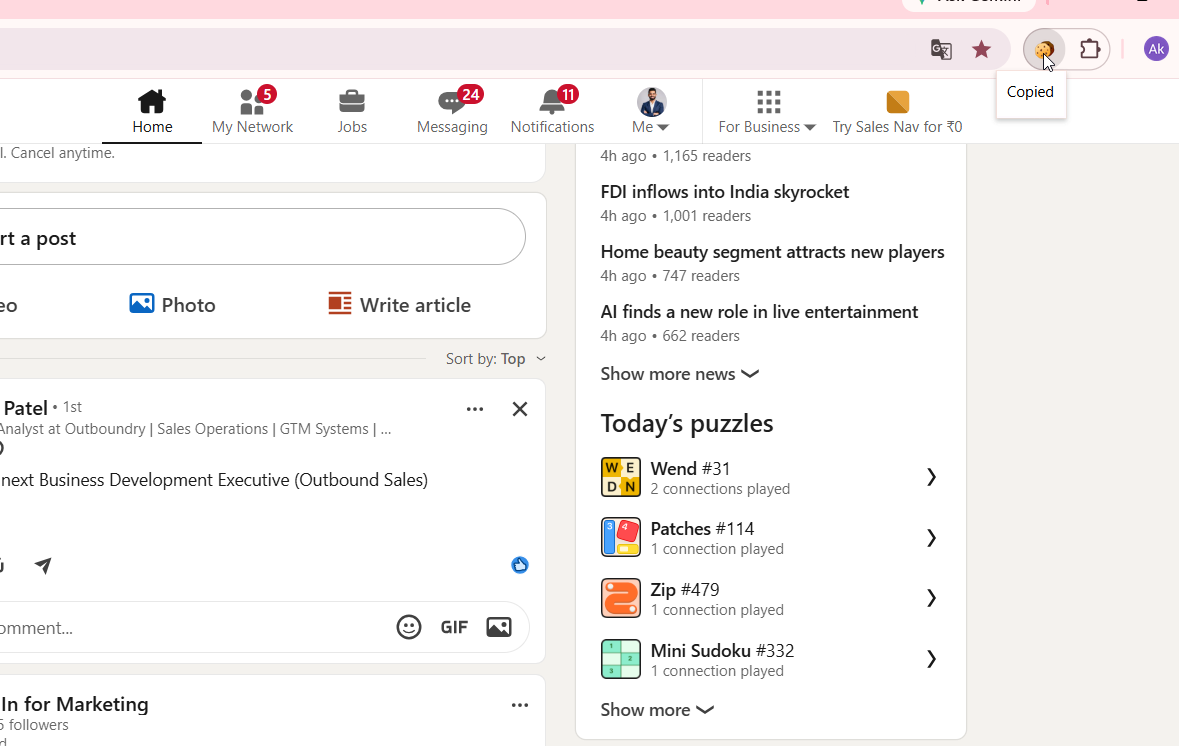
Click the Copy Cookies extension.
Select Copy to copy your active LinkedIn session.
Step 6: Paste the cookie
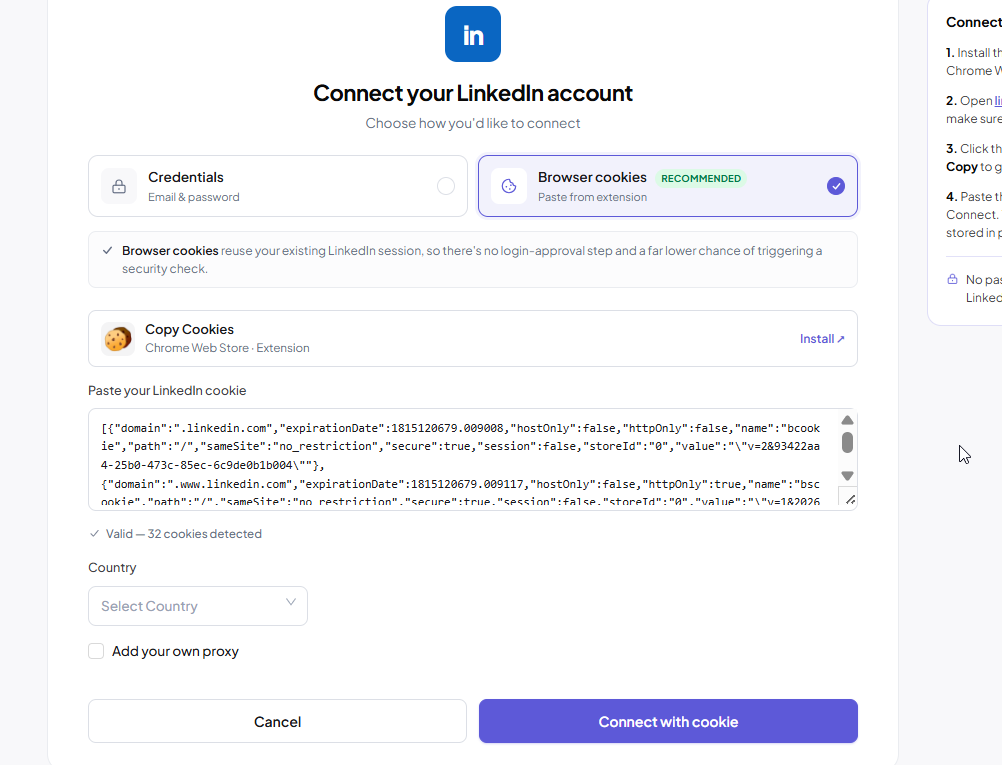
Return to Outboundry and paste the copied cookie into the cookie field.
If the cookie is valid, you'll see a confirmation message indicating that a valid LinkedIn cookie has been detected.
Step 7: Connect your account
Click Connect with Cookie.
Outboundry will begin connecting your LinkedIn account. This process may take a few minutes.
Once complete, you'll see a confirmation message and your LinkedIn account will appear in your account list with an Active status.
Connect using LinkedIn Credentials
If you cannot use Browser Cookies, you can connect by signing in with your LinkedIn credentials.
Step 1: Open Connect Account
Navigate to:
LinkedIn Accounts → Connect Account
Select Credentials.
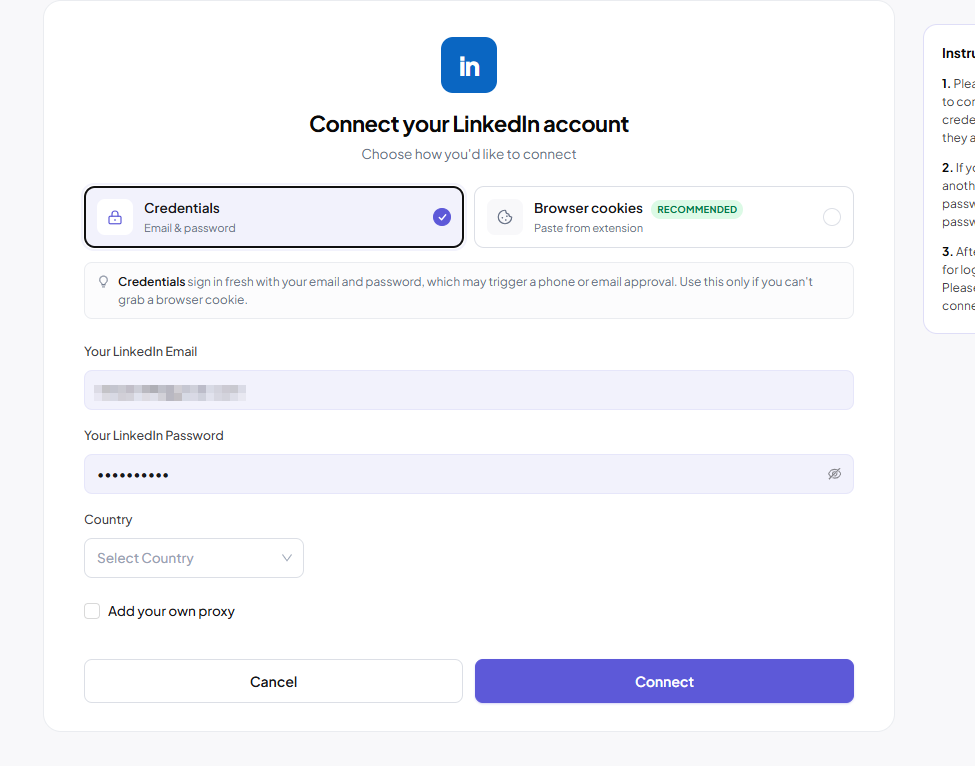
Step 2: Enter your LinkedIn credentials
Enter:
LinkedIn email address
LinkedIn password
Note: If you normally sign in using Google or Apple, you'll first need to create a LinkedIn password before using this method.
Step 3: Select your country
Choose the country associated with your LinkedIn account.
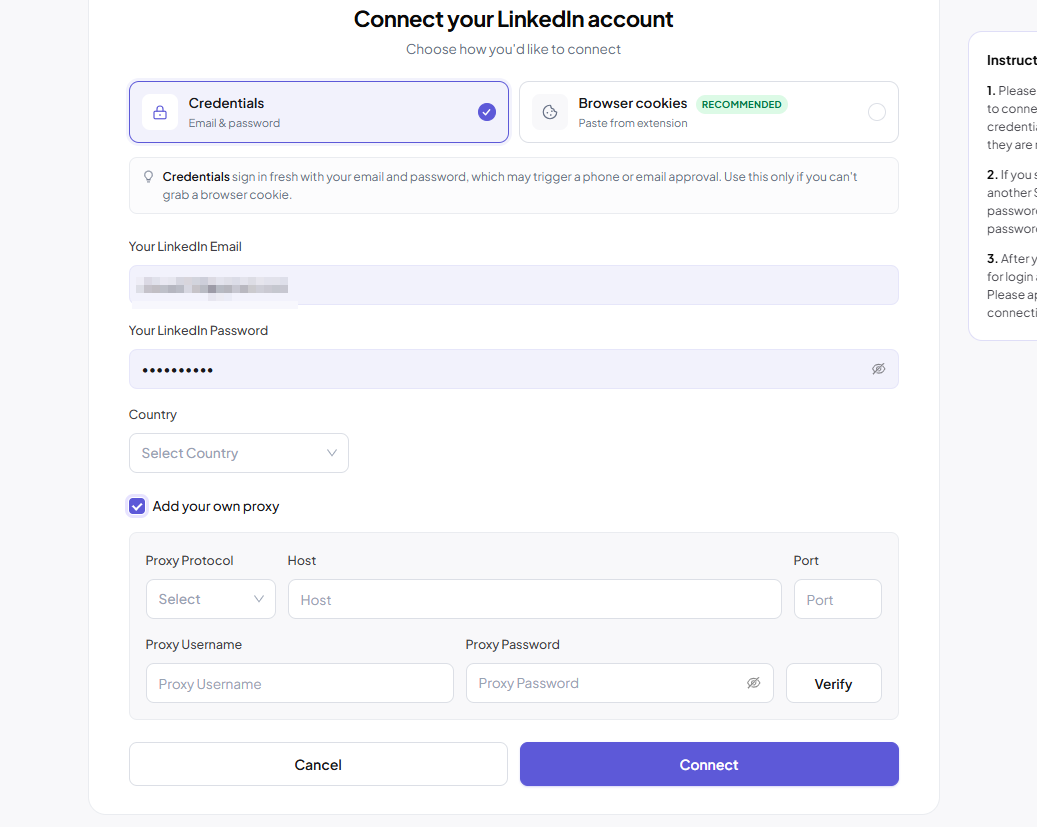
Step 4 (Optional): Configure your own proxy
If you'd like to connect using your own proxy server:
Enable Add your own proxy
-
Enter:
Protocol
Host
Port
Username
Password
Click Verify
Once verification succeeds, continue to the next step.
Step 5: Connect
Click Connect.
Outboundry will begin connecting your LinkedIn account.
The connection process may take several minutes.
Step 6: Complete LinkedIn verification
LinkedIn may ask you to verify the login by:
Entering a 6-digit verification code
Approving the login request from the LinkedIn mobile app
Complete the verification to finish connecting your account.
Once approved, your LinkedIn account will become available in Outboundry.
What happens after connecting?
After your account is connected, you can:
Use it in LinkedIn campaigns.
Use it in multi-channel campaigns.
Configure daily activity limits.
Set working hours and timezone.
Track outreach performance and analytics.
Connect additional LinkedIn accounts if needed.
Connection Statuses
During the connection process, you may see one of the following statuses.
Connecting
Your account is currently being connected.
This can take several minutes.
Verification Required
If you're using the Credentials method, LinkedIn may request additional verification.
Follow the instructions provided by LinkedIn to continue.
Connected
Your LinkedIn account has been successfully connected and is ready to use.
Session Expiring
If your browser cookie is about to expire, Outboundry will notify you that your session needs to be refreshed. Reconnect your account with a new cookie to keep your campaigns running.
Connection Failed
If the connection fails, Outboundry will display an error message explaining the reason.
Common causes include:
Expired browser cookie
Incorrect LinkedIn credentials
Login verification not completed
Invalid proxy configuration
Tips
We recommend connecting using Browser Cookies whenever possible.
Keep your LinkedIn session active when copying cookies.
If you reconnect using Browser Cookies, always generate a fresh cookie instead of reusing an older one.
If you're using a proxy, verify the connection before attempting to connect your LinkedIn account.
Each connected LinkedIn account maintains its own daily limits, working hours, and analytics.
Frequently Asked Questions
Which connection method should I use?
We recommend Browser Cookies for most users. It uses your existing LinkedIn session, avoids additional login verification, and is less likely to trigger LinkedIn security checks.
Is my LinkedIn password or cookie secure?
Yes. Outboundry encrypts your credentials. Browser cookies are never stored in plain text, and passwords are encrypted and never exposed.
My cookie isn't working. What should I do?
Your LinkedIn session may have expired.
Sign in to LinkedIn again, copy a fresh cookie using the Copy Cookies extension, and reconnect your account.
Do I need to use a proxy?
No. Using a proxy is optional and is only available when connecting with LinkedIn credentials.
Can I connect multiple LinkedIn accounts?
Yes. You can connect multiple LinkedIn accounts to the same workspace. Each account has its own activity limits, schedule, timezone, and performance statistics, allowing you to use different accounts across your campaigns.